Extracting Tables from PDF Files with Python A Practical Guide
Master extracting tables from PDF files using Python. This guide covers top libraries like Camelot and powerful AI/OCR solutions for any document type.
Getting tables out of a PDF isn't a one-size-fits-all problem. Before you even think about writing code, the very first thing to figure out is what kind of PDF you're dealing with. It's a simple diagnostic that will save you hours of frustration down the road.
Try this: can you click and drag to highlight the text inside a table? If you can, you've got a digital (or "text-selectable") PDF. That's the best-case scenario.
If your cursor just draws a box over the text like it's a picture, you're looking at a scanned PDF. It's basically an image wrapped in a PDF container. This completely changes your game plan.
Digital vs. Scanned: The First Crucial Decision
For digital PDFs, you can use Python libraries that are built to read the document's underlying structure. They can see the text, the coordinates, the lines—everything you need for a clean extraction.
Scanned PDFs, on the other hand, are blind to the text they contain. You need a tool that can see the document and turn the picture of the text back into actual characters. This is the world of Optical Character Recognition (OCR).
This decision point is so fundamental that it dictates your entire workflow.
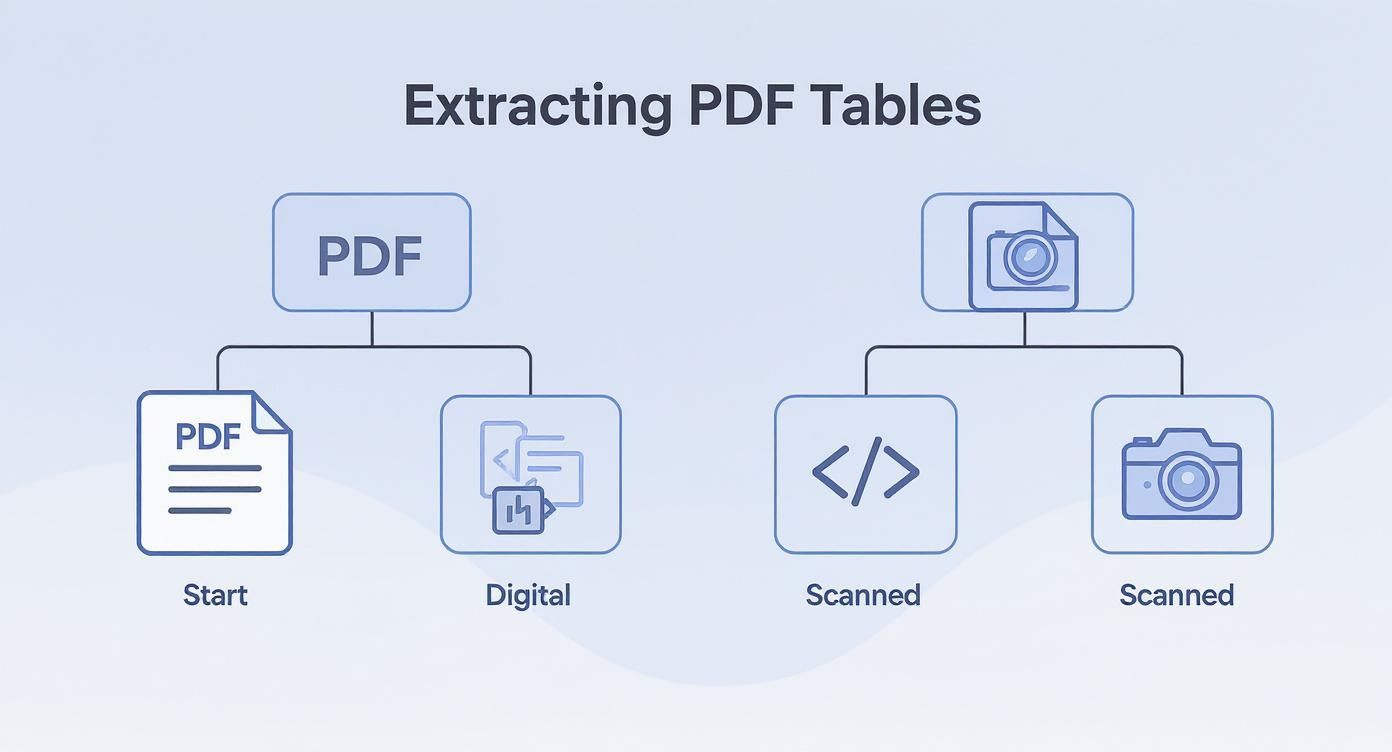
As the diagram shows, a quick check for selectable text is all it takes to decide whether you're heading down the programmatic path or the OCR path.
Choosing the Right Tool for the Job
Once you know your PDF type, picking the right tool becomes much clearer. Each has its own sweet spot depending on the complexity of your tables and your project.
For Digital PDFs (The Programmatic Approach)
Your main contenders here are Python libraries designed for exactly this task.
- pdfplumber: This is my usual starting point. It's a fantastic all-rounder that's great for tables with clean, simple layouts. It gives you fine-grained access to all the PDF objects if you need to get fancy.
- Camelot: When things get messy, Camelot is a lifesaver. It has two modes—"Lattice" for tables with clear grid lines and "Stream" for tables without them. It's incredibly configurable and powerful for complex layouts.
- Tabula-py: This is a Python wrapper for the popular Java tool, Tabula. It’s known for being user-friendly and very effective for most standard table extraction jobs.
For a bit more background on the fundamentals, our guide on how to build a simple Python PDF reader covers some core concepts that are helpful here.
For Scanned PDFs (The OCR Approach)
When you can't select the text, you need to bring in the OCR specialists.
- Tesseract: The open-source powerhouse from Google. With a high-quality, clean scan, Tesseract can work wonders. But it can definitely struggle with noisy documents, weird fonts, or complex formatting.
- Cloud AI Services (Google Document AI, AWS Textract): These are the big guns. They use sophisticated machine learning models trained specifically for document processing. They excel at handling messy scans, handwritten notes, and bizarre table structures with far greater accuracy than a standalone OCR engine.
To help you decide at a glance, here’s a quick breakdown.
Choosing Your Python PDF Table Extraction Tool
This table offers a quick comparison to help you decide which tool fits your specific PDF and table complexity.
| Tool | Best For | Key Feature | Complexity Level |
|---|---|---|---|
| pdfplumber | Clean, simple digital tables | Direct access to PDF objects (chars, lines) | Low to Medium |
| Camelot | Complex digital tables (with or without lines) | Configurable "Lattice" and "Stream" modes | Medium to High |
| Tabula-py | Straightforward digital tables | User-friendly and quick to implement | Low |
| Tesseract | High-quality scanned documents | Open-source and highly customizable | Medium |
| Cloud AI | Messy, complex, or handwritten scans | Pre-trained models for high accuracy | High |
Ultimately, the best tool is the one that reliably gets the job done for your specific documents. It often pays to experiment with a couple of them before committing to a full pipeline.
Extracting Data from Digital PDFs with Python
So, you've confirmed your PDF is digital. That means you can skip the tedious manual copy-pasting and get down to business with Python. There’s a whole ecosystem of libraries ready to turn this chore into an automated workflow. The trick is knowing which tool to grab for the job.
We're going to walk through three of the most popular and effective libraries: pdfplumber, Camelot, and Tabula-py. Each has its own strengths and weaknesses. Picking the right one from the start will save you a ton of headaches down the road. Ultimately, the goal is always the same: pull that table out and get it into a clean, structured format, usually a Pandas DataFrame.
This is what it's all about—writing code to turn raw, messy document data into something you can actually work with.
Using pdfplumber for Clean Tables
When you’re dealing with well-behaved tables—the kind with clear borders and a simple grid layout—pdfplumber is your best friend. It’s fast, lightweight, and gets the job done without a lot of fuss.
It’s built on pdfminer.six and gives you low-level access to the geometry of text, lines, and rectangles in the PDF. This makes it a precision tool rather than a "magic" solution, which is perfect for straightforward extractions.
First, you'll need to install it and Pandas:
pip install pdfplumber pandas
The workflow is incredibly simple: open the PDF, grab the page you want, and call extract_tables(). It returns a list of tables, with each table being a list of rows.
import pdfplumber import pandas as pd
pdf_path = "financial_report.pdf" with pdfplumber.open(pdf_path) as pdf: # Let's just work with the first page for this example first_page = pdf.pages[0]
# This pulls all tables it can find on the page
tables = first_page.extract_tables()
Assuming the first table it finds is the one we want
if tables: df = pd.DataFrame(tables[0][1:], columns=tables[0][0]) print(df) df.to_csv("extracted_table_pdfplumber.csv", index=False) This script works great as a starting point. But remember, table extraction is just one piece of the puzzle. For a deeper dive into handling raw text before you even get to the tables, check out our guide on Python PDF text extraction.
Tackling Complex Tables with Camelot
What about the messy PDFs? The ones with no gridlines, merged cells, or tables that spill across multiple pages? That’s where Camelot shines. It was built specifically to give you more control over the extraction chaos.
Camelot is my go-to library when pdfplumber throws its hands up. Its dual-mode approach—'Lattice' and 'Stream'—provides the flexibility needed for the messy, real-world PDFs that most of us actually have to deal with.
Be warned, the installation can be a bit more involved. It has some dependencies you might need to install with system package managers like brew or apt-get, so follow the official docs closely.
Once it's running, you have two powerful parsing methods:
- Lattice: Use this when your tables have visible gridlines separating the cells. It uses those lines to reconstruct the table structure.
- Stream: This is the mode for tables without any lines. It cleverly uses the whitespace between text to figure out where the columns and rows are. It's fantastic but sometimes needs a little tweaking to get right.
Here's how you might use Camelot, telling it which method to use.
import camelot import pandas as pd
pdf_path = "annual_summary.pdf"
Use 'lattice' for tables with clear borders, across pages 1-3
tables = camelot.read_pdf(pdf_path, flavor='lattice', pages='1-3')
Check how many tables were found
print(f"Found {tables.n} tables.")
Export the first table to a CSV
if tables.n > 0: df = tables[0].df df.to_csv("extracted_table_camelot.csv", index=False) print("First table exported successfully.")
The Simplicity of Tabula-py
Another fantastic option is Tabula-py, which is a Python wrapper for the battle-tested Java library, Tabula. It's incredibly user-friendly and another solid choice for digital PDFs.
One of its killer features is the ability to define a specific rectangular area on the page to search for a table. This is a lifesaver when a page is crowded with text and you only care about one specific table. It cuts down on noise and dramatically improves accuracy.
Here's a quick look at how easy it is to use:
import tabula import pandas as pd
pdf_path = "product_catalog.pdf"
Read all tables from the first page into a list of DataFrames
dfs = tabula.read_pdf(pdf_path, pages=1)
Save the first table it found to a CSV file
if dfs: dfs[0].to_csv("extracted_table_tabula.csv", index=False) print("Table extracted with Tabula-py.") So, which one should you choose? My advice is to start with pdfplumber for its simplicity. If that doesn't work, escalate to Camelot for its power and fine-grained control. And keep Tabula-py in your back pocket for its ease of use and awesome area-selection feature.
Conquering Scanned PDFs with OCR and Cloud AI
Sooner or later, you'll hit a wall: a PDF that's just an image of a document. All the Python libraries we’ve talked about so far will fall flat. They need digital text and vector data to work their magic, and a scanned file has none of that. This is where you have to switch gears from reading text to seeing it. Welcome to the world of Optical Character Recognition (OCR).
This pivot is a classic hurdle in document automation. You're no longer parsing a clean, existing structure; you're trying to build one from raw pixels. Suddenly, the quality of your scan—its resolution, lighting, and clarity—becomes the single most important factor for getting good results.
The first step is always the same: run the image through an OCR engine. This turns the picture of a table into recognized text with coordinate data, which is the raw material you'll need to piece the table back together.
Starting with Open-Source OCR: Tesseract
For crisp, high-quality scans with a simple grid layout, the open-source Tesseract engine is a fantastic place to start. It's maintained by Google and runs locally, so you keep full control over your data pipeline without ringing up any cloud service bills.
You can pull Tesseract into your Python workflow with a wrapper like pytesseract. The typical process involves converting a PDF page to an image (using something like pdf2image) and then passing that image to Tesseract to pull out the text.
But here’s the catch: Tesseract just gives you back a wall of text. It has no idea it's looking at a table. You’ll have to write a good amount of post-processing code to figure out where the columns are based on spacing and manually reconstruct the rows. This method works best for standardized documents where the table layout never changes.
When to Upgrade to Cloud AI Services
The open-source path has its limits. The moment you run into real-world document chaos—grainy scans, skewed pages, weird formatting, or merged cells—Tesseract will start to struggle. The time you spend writing custom parsers and cleaning up messy output can quickly cancel out any cost savings.
This is the exact point where cloud-based AI document processing services become a no-brainer. Tools like Google Document AI and AWS Textract aren't just OCR engines. They are specialized platforms trained on millions of documents to understand complex layouts, including tables, forms, and key-value pairs.
"I've seen teams spend weeks trying to build custom parsers on top of Tesseract for messy invoices. Switching to a service like AWS Textract or Google Document AI often solves the problem in an afternoon with over 95% accuracy, saving countless engineering hours."
These platforms do all the heavy lifting. You upload a PDF, and they perform high-accuracy OCR, identify the table's boundaries, and return a clean JSON object that explicitly defines every row, column, and cell. This lets you skip the brittle parsing code and get far more reliable results.
Comparing Google Document AI and AWS Textract
While both services are top-tier, they have different strengths. Your choice often comes down to the specifics of your project.
Here's a look at the Google Document AI interface, which allows you to test processors on your own documents.
This kind of visual feedback is incredibly helpful for understanding how the AI sees your document and its ability to distinguish tables from regular text.
Let's break down the key differences:
- Accuracy and Specialization: Google Document AI offers specialized "processors" for things like invoices and contracts, which can deliver higher accuracy for those specific formats. AWS Textract provides a more general but very powerful table and form extraction engine that works well across a huge variety of documents.
- Implementation: Both platforms have great APIs and SDKs for Python. If you're comfortable with cloud services, integration is pretty simple. The standard flow is to upload your document to a storage bucket and then make an API call to analyze it.
- Cost: Pricing is usually per page. AWS Textract has a generous free tier that makes it appealing for small projects or just trying things out. Google's pricing is competitive, and often the decision comes down to which cloud ecosystem you're already using.
The demand for these kinds of powerful tools is only growing. The PDF software market was valued at around USD 2.15 billion in 2024 and is expected to hit USD 5.72 billion by 2033, largely driven by the need for better data extraction. You can read more about this trend and its impact on PDF technologies.
Your choice should be a practical one. Start with Tesseract for the clean, simple stuff. The minute you find yourself spending more time cleaning the data than extracting it, it’s time to switch to a cloud AI service.
Cleaning and Structuring Your Extracted Table Data
Getting the raw data out of a PDF is a solid start, but let’s be honest—it’s never the final step. The output from even the slickest extraction tools is often a bit of a mess. You're left with inconsistent, messy data that’s not quite ready for your database or analytics dashboard.
This is where the real work begins. We need to turn that raw output into clean, structured, and reliable information.
Think of it like this: the initial extraction is like mining for ore. You've got the valuable stuff, but it's mixed with a lot of dirt. This post-processing stage is the refinery, and our primary tool for the job is almost always the Pandas library in Python.
Common Cleaning Headaches and How to Fix Them
Once you load your extracted table into a Pandas DataFrame, you'll almost certainly run into a few familiar problems. If you don't address them head-on, these issues can quietly break your data pipelines down the road.
One of the most frequent culprits is multi-line text in a single cell. Extraction tools often see these as separate rows, which throws your entire table structure out of alignment. You'll spot this when a row has data in just the first column and is empty everywhere else. The fix usually involves looping through the DataFrame to merge these fragmented rows back where they belong.
Another classic challenge is messy headers. It's common for extraction to pull in newline characters (\n) or sneaky extra spaces. A quick one-liner to sanitize your column names should always be one of your first moves.
A simple but powerful way to clean headers
df.columns = df.columns.str.strip().str.replace('\n', ' ', regex=False)
You'll also wrestle with merged cells, which often show up as NaN (Not a Number) or empty values in your DataFrame. This is where Pandas' ffill() (forward fill) method becomes your best friend. It neatly propagates the last valid value forward, filling in the gaps left by the merged cell.
A clean dataset is a reliable dataset. Spending an hour on post-processing can save you days of debugging downstream when your analytics are off or your application is failing because of an unexpected data format.
Normalizing and Validating Your Data
With the big structural problems fixed, it's time for data normalization. This is all about making sure the data within each column is consistent and follows a predictable format.
Here are a few typical tasks you'll encounter:
- Standardizing Dates: One table might have "Oct. 1, 2024," "10/01/2024," and "2024-10-01." Using
pd.to_datetimeis the perfect way to wrangle them all into a single, uniform format. - Cleaning Numeric Values: Currency symbols, commas, and percentage signs are the enemy of clean numbers. They often force Pandas to read a numeric column as text. You’ll need to strip these characters out and convert the column to a proper
floatorinttype. - Trimming Whitespace: Leading and trailing spaces are invisible bugs waiting to happen. Applying
.str.strip()to all your text-based columns is a simple best practice that prevents a world of pain.
After normalization comes validation, your final quality assurance check. This is where you enforce business rules to confirm the data actually makes sense. You might, for example, check that a "quantity" column only contains positive numbers or that a "status" column contains only approved values like "Active" or "Inactive."
For more robust validation, a library like Pydantic is fantastic. It lets you define a strict data schema in Python, which you can then use to validate each row of your DataFrame. This approach is incredibly powerful when you're preparing data for an API or a structured database, as it guarantees every single record conforms to the format you expect.
Ultimately, the goal is to export your sparkling clean data into a reliable CSV or structured JSON, ready to be fed into any system you need.
Preparing Extracted Tables for AI and RAG Workflows
<iframe width="100%" style="aspect-ratio: 16 / 9;" src="https://www.youtube.com/embed/JEBDfGqrAUA" frameborder="0" allow="autoplay; encrypted-media" allowfullscreen></iframe>So you’ve got clean, structured data. Great. But the journey doesn't have to end with a CSV file sitting on your hard drive. The tables you've worked so hard to extract are incredibly valuable assets for powering Large Language Models (LLMs) and sophisticated AI systems like Retrieval-Augmented Generation (RAG).
Instead of being static data, your tables can become a dynamic, searchable knowledge base.
But this shift requires a different way of thinking. An LLM doesn't "read" a 10,000-row spreadsheet the way a human does. To make tabular data truly useful for AI, you have to break it down into smaller, context-rich pieces. This process is called chunking.
Intelligent Chunking for Tabular Data
Let’s be clear: just saving an entire table as one giant document for your RAG system is a recipe for disaster. The model will drown in a sea of rows and columns, struggling to find specific, relevant answers. You need a much more strategic approach.
Here are a few effective strategies I’ve seen work well:
- Row-based Chunking: Each row (or a small group of related rows) becomes its own chunk. This is perfect for tables where each row is a self-contained record, like a product catalog or a list of financial transactions.
- Cell-based Chunking: This is rarer, but if you have cells containing long-form text (like detailed descriptions or notes), you might need to chunk individual cells to preserve their meaning.
- Semantic Chunking: This is a more advanced technique where you group rows based on a common theme or category. It creates more contextually coherent chunks that are easier for the AI to understand.
The whole point is to create chunks small enough for an LLM to process efficiently but large enough to contain meaningful, complete information. Bad chunking leads to fragmented, out-of-context data, which directly torpedoes the quality of your AI's responses. For a deeper dive into this critical step, you can learn more about techniques for RAG pipeline optimization that can make a huge difference in performance.
Embedding Chunks with Rich Metadata
A chunk of data without context is just noise. This is non-negotiable for building a reliable RAG pipeline: every single chunk you create must be enriched with metadata.
Think of metadata as a digital fingerprint for each piece of data. It tells the system everything it needs to know about where a chunk came from and what it means.
By embedding each chunk with precise metadata, you transform a simple data point into a verifiable fact. This allows a RAG system to not only provide an answer but also cite its exact source, building user trust and enabling easy fact-checking.
For table chunks, here’s the essential metadata you should always include:
- Source Document: The exact filename of the PDF the data came from (e.g.,
Q3_Financials_2024.pdf). - Page Number: The page where you found the original table.
- Table Identifier: A unique ID for that table within the document (e.g.,
table_01). - Row and Column Headers: Including the original headers gives the LLM vital context about what the data in the chunk actually represents.
This level of detail is critical for traceability. When a user asks a question and the RAG system pulls an answer from your tables, it can also return the source metadata. This lets the user—or an auditor—go straight back to the original PDF page and verify the information for themselves.
It's this push for reliable, automated systems that's driving the data extraction software market, which was valued at USD 2.01 billion in 2025 and is projected to hit USD 3.64 billion by 2029. You can discover more insights about the data extraction market growth to see where the industry is headed.
Common Questions About PDF Table Extraction
Even with the best tools, pulling tables out of PDFs can feel like a wrestling match. You get one workflow humming along, and the next document throws a completely new curveball. It’s a common frustration.
Let's walk through some of the most frequent roadblocks I've seen in extraction projects. These are the questions that pop up again and again, and here are the practical answers to get you unstuck.
Can I Extract Tables from a Password-Protected PDF?
Yes, but there's no magic bullet—you need the password.
Most Python libraries like pdfplumber and Camelot are built for this. They have a simple password argument you can pass when opening the file. If you don't have the key to decrypt the document, the library can't see the content, and the whole operation will just fail.
For example, with pdfplumber, it’s as straightforward as:
with pdfplumber.open("secure_document.pdf", password="your_password") as pdf:
Just remember, if you're processing a big batch of protected files, you'll need a solid, secure way to manage those credentials in your script.
Which Library Is Best for Tables Without Borders?
This is a classic headache. For tables without any visible lines, Camelot is hands-down the winner. Its "Stream" mode was specifically designed for this nightmare scenario.
Instead of looking for lines, it analyzes the whitespace and alignment of text to piece together the column and row structure. It’s pretty clever. But be ready to tinker a bit. You'll likely need to adjust parameters like column_separators or row_tol to help it guess the layout correctly. It feels more like an art than a science sometimes, but for borderless tables, it's the sharpest tool in the Python shed.
When a table lacks clear lines, you're no longer just extracting—you're interpreting. Camelot's Stream mode provides the knobs and dials needed to guide that interpretation, turning a chaotic layout into structured data.
How Can I Improve Accuracy on Low-Quality Scans?
Ah, the dreaded grainy, skewed, or poorly lit scan. This is where table extraction gets really tough. While no tool is perfect, you can absolutely improve your odds.
- Pre-process the Image: Before you even think about OCR, clean up the image. Use a library like OpenCV to automatically straighten the image (deskewing), convert it to a crisp black and white (binarization), and remove random speckles (noise removal). This alone can make a huge difference.
- Boost the Resolution: If you have any control over the scanning process, aim for 300 DPI or higher. Giving the OCR engine more pixels to analyze dramatically improves its ability to recognize characters correctly.
- Bring in the Big Guns: For consistently messy documents, an open-source tool like Tesseract will eventually hit its limit. This is the time to switch to a specialized cloud service. Tools like AWS Textract or Google Document AI have models trained on millions of real-world documents and are built to handle the imperfections you find in the wild.
What's the Best Way to Handle Tables Spanning Multiple Pages?
Another common problem. A table starts on page 4 and continues onto page 5. How do you stitch it back together?
Again, this is where a purpose-built library shines. Camelot’s read_pdf function has a pages argument you can set to 'all' or a specific range like '2-5'. It’s smart enough to find tables that are split across pages and merge them for you.
If you’re taking a more manual route with a library like pdfplumber, you’ll have to build that logic yourself. The typical approach is to loop through the relevant pages, extract the table segments, and then write a bit of code to combine them. You'd identify the header on the first page and then append the rows from the following pages to create one clean, unified DataFrame.
Ready to move beyond manual scripting and build production-grade document processing workflows? ChunkForge is a contextual document studio that transforms your PDFs into RAG-ready chunks with deep metadata and full traceability. Start your free trial today and see how easy it is to prepare your documents for modern AI applications. Learn more at ChunkForge.
Article created using Outrank