Mastering Python PDF Text Extraction A Developer's Handbook
A practical guide to Python PDF text extraction. Learn to handle digital and scanned PDFs with PyMuPDF and OCR, then prep text for AI and RAG systems.
If you've ever tried to pull text out of a PDF, you know it can feel like a losing battle. The format was built for printing consistent-looking documents, not for letting us easily grab the data inside. Yet, for developers tackling this problem, Python is almost always the weapon of choice. And for good reason.
It’s not just about having a few good libraries; it’s the entire ecosystem that makes Python the definitive tool for the job.
Why Python Is Your Best Tool for PDF Text Extraction
The real magic of using Python is that it acts as a central hub for a complete data workflow. You don't just extract text—you can immediately clean, analyze, and feed it into other systems, all within the same environment.
- Seamless Data Science Integration: Once you have the text, you can load it straight into a Pandas DataFrame for analysis, clean it up with NumPy, and even build visualizations with Matplotlib.
- Advanced NLP Capabilities: From there, it’s a short hop to powerful Natural Language Processing (NLP) libraries. You can use tools like spaCy or NLTK to perform entity recognition, run sentiment analysis, or summarize thousands of documents.
- AI and Machine Learning Pipelines: Most importantly for modern applications, this extracted text becomes the fuel for AI models. It's the raw material for training datasets or, more commonly, for Retrieval-Augmented Generation (RAG) systems that power today's intelligent chatbots and knowledge bases.
Understanding the Two Types of PDFs
Before you write a single line of code, you have to know what you're up against. This is critical. Failing to differentiate between the two main types of PDFs is the number one reason extraction scripts break. They might look the same, but they are fundamentally different.
Digital (Text-Based) PDFs are the most common and the easiest to work with. These are created directly from software like Word or Google Docs. The text inside is "real"—it's selectable, searchable, and stored as actual character data.
Scanned (Image-Based) PDFs are a different beast entirely. They're just pictures of paper documents wrapped in a PDF container. The tell-tale sign is when you can't click and drag to select individual words. Standard text extraction methods will come up completely empty because, from the computer's perspective, there's no text there to read.
A single script won't work for both. Digital PDFs need direct text extraction, while scanned PDFs require Optical Character Recognition (OCR) to turn the image of text into actual machine-readable characters. This guide will give you rock-solid Python strategies for handling both scenarios.
Choosing Your Python PDF Library
With so many options, picking the right library can be daunting. The best choice really depends on what you're trying to accomplish—are you dealing with simple text, complex layouts, or scanned documents?
Here’s a quick breakdown to help you decide.
| Library | Best For | Key Feature |
|---|---|---|
| PyPDF2 | Basic text, splitting, merging, and metadata. | The classic workhorse; great for simple, scriptable PDF tasks. |
| pdfplumber | Extracting data from tables and structured layouts. | Excellent at identifying and preserving table structures. |
| PyMuPDF (Fitz) | High-performance extraction and versatility. | Extremely fast and handles text, images, and annotations. |
| pdf2image + Tesseract | Scanned PDFs that require OCR. | The standard open-source OCR workflow for image-based PDFs. |
Each of these libraries shines in different areas. We'll dive into the practical code for the most common ones, starting with the simplest case: pulling text from a standard digital PDF.
Handling Digital PDFs with PyMuPDF
While many developers get their start with PyPDF2, we're jumping straight to a more powerful tool for one simple reason: performance. For any serious python pdf text extraction, especially in a production environment, speed and reliability are everything. This is where PyMuPDF, often imported as fitz, really shines.
It's a common story: you start with a popular library like PyPDF2 because it’s beginner-friendly, but you quickly hit a wall. Benchmarks and real-world use consistently show that PyMuPDF and PDFPlumber are far better suited for the demands of production. PyMuPDF, in particular, is celebrated for its raw speed and efficiency, especially when churning through large batches of documents. It uses less memory and finishes the job faster, making it the clear choice for performance-critical work. If you want to dig deeper, you can find more insights about top Python libraries for this task.
Getting Started with PyMuPDF
First things first, let's get it installed. The process is simple, but there's one common gotcha you need to know about. You install the package named PyMuPDF, but you import it in your code as fitz.
Just open your terminal and run this command:
pip install PyMuPDF
Once that's done, you can pull it into your Python script. The fitz name is a nod to the library's history, and it's the standard convention everyone follows.
import fitz # This is PyMuPDF
That’s it. You're all set to start opening and reading PDF files.
Extracting Text from a PDF Page by Page
The most basic task is to open a PDF and loop through its pages to grab the text. PyMuPDF makes this incredibly straightforward and efficient. Let's whip up a quick script to pull all the text from a document.
You start by opening the file using fitz.open(). This gives you a document object, which is your gateway to all its contents.
def extract_text_from_pdf(pdf_path): """ Extracts text from all pages of a PDF file using PyMuPDF.
Args:
    pdf_path (str): The file path to the PDF document.

Returns:
    str: The concatenated text from all pages.
"""
try:
    doc = fitz.open(pdf_path)
    full_text = ""
    for page_num in range(len(doc)):
        page = doc.load_page(page_num)  # Load the current page
        full_text += page.get_text()   # Extract text from the page

    doc.close()
    return full_text
except Exception as e:
    print(f"An error occurred: {e}")
    return None
Example usage:
file_path = 'your_document.pdf' extracted_text = extract_text_from_pdf(file_path)
if extracted_text: print(extracted_text)
This simple function handles the whole process. It iterates through each page, calls the get_text() method, and stitches the results together. For most digitally-born PDFs, this works like a charm.
Pro Tip: Always wrap your file operations in a
try...exceptblock. PDFs can be corrupted or just plain weird. This simple step stops one bad file from crashing your entire script—an absolute must for batch processing.
Going Beyond Raw Text with Metadata
Sometimes, just the text isn't enough. You need the story behind the document. Metadata provides that context, telling you about a file's origin, author, and creation process. PyMuPDF gives you easy access to all of it.
The doc.metadata attribute is a dictionary packed with useful details:
author: Who created the document.creator: The software used to create it (e.g., "Microsoft Word").producer: The tool that converted or modified the PDF (e.g., "Adobe PDF Library").creationDate: When the document was first created.modDate: The timestamp of the last modification.title: The official title of the document.
You can easily modify the script to pull this information, too.
def get_pdf_metadata(pdf_path): """Prints the metadata of a PDF file.""" try: with fitz.open(pdf_path) as doc: print("Metadata for:", pdf_path) for key, value in doc.metadata.items(): print(f" {key}: {value}") except Exception as e: print(f"Could not read metadata: {e}")
Example usage:
get_pdf_metadata('your_document.pdf')
This function uses a with statement, which is a cleaner, more "Pythonic" way to handle files. It automatically closes the document for you, even if errors pop up. Extracting metadata is incredibly valuable for organizing large archives or adding provenance to the data you're feeding into a RAG system.
Extracting Text from Scanned PDFs with OCR
Sooner or later, you'll hit a PDF that’s nothing but a collection of images. Think scanned contracts, old invoices, or archived reports. Your standard text extraction methods won't work here because there's no actual text to grab—just pixels. This is where you need to bring in the heavy machinery: Optical Character Recognition (OCR).
OCR is the magic that turns an image of text into actual, machine-readable characters. For this job, we'll turn to Tesseract, a powerhouse open-source OCR engine originally from HP and now managed by Google. It’s pretty much the go-to for open-source OCR.
The catch? Tesseract doesn't read PDF files directly. Our mission is to build a simple pipeline that feeds it high-quality images, one page at a time. This is where our old friend PyMuPDF shines, acting as the perfect go-between.
This basic workflow is the heart of our strategy: open the PDF, loop through the pages, and hand off each one to the OCR engine.
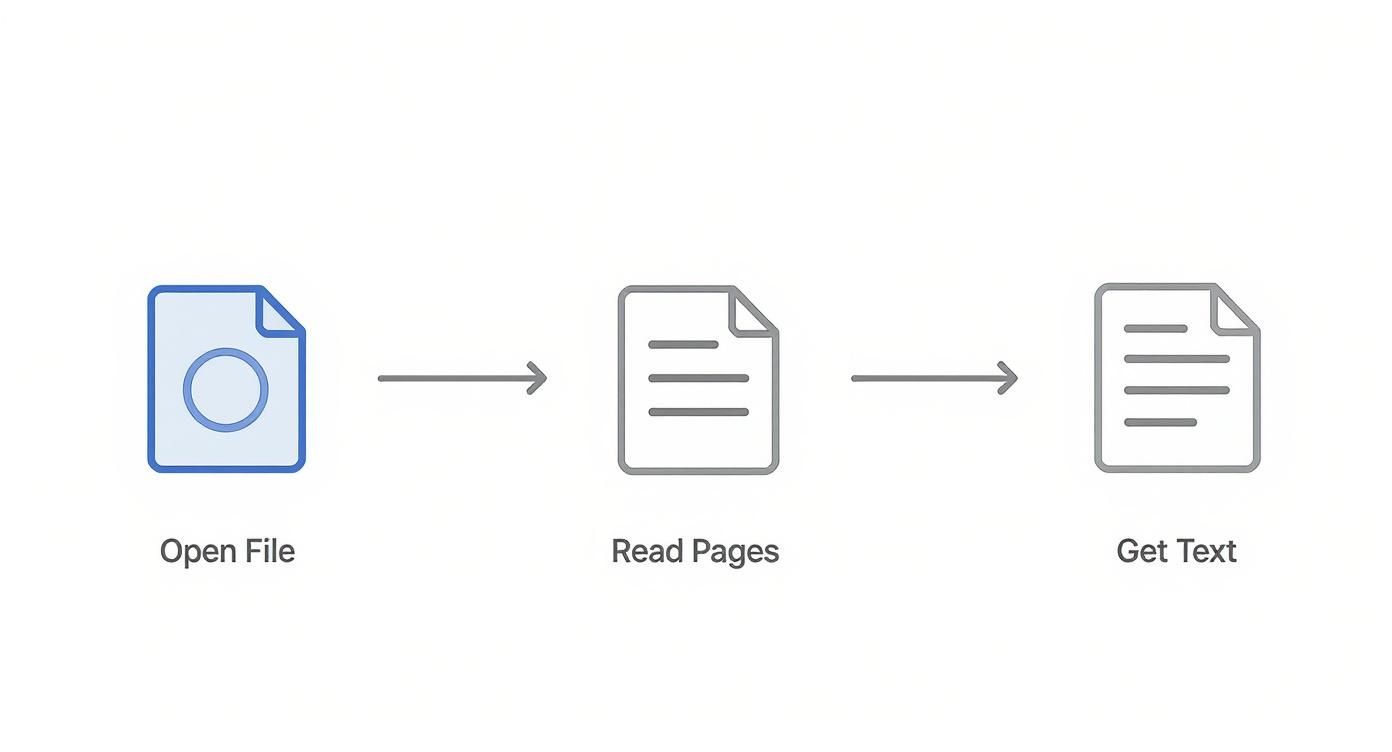
This methodical approach ensures we capture the text from every single page, assembling it into a complete document.
Setting Up Your OCR Environment
Before we jump into the code, we need to get our tools in order. This isn't just a simple pip install. We need three pieces: the Tesseract engine itself, a Python wrapper to talk to it, and a library for image handling.
First, install Tesseract OCR. This is a separate application, not a Python package, and the process varies by operating system.
- macOS (Homebrew):
brew install tesseract - Ubuntu/Debian:
sudo apt install tesseract-ocr - Windows: You'll need to grab the installer from the official Tesseract GitHub repository. Make sure to add it to your system's PATH during installation so Python can find it.
Next, install the necessary Python libraries. We'll need pytesseract to communicate with the Tesseract engine, PyMuPDF to render PDF pages into images, and Pillow for image manipulation.
pip install pytesseract PyMuPDF Pillow
With that done, your environment is ready to tackle any scanned PDF you throw at it.
A Reliable OCR Workflow in Python
Our game plan is straightforward: open the PDF, convert each page into a high-resolution image, and then pass that image to Tesseract for recognition. This method is incredibly robust and gives you fine-grained control over the whole process.
Let's put together a function that takes a PDF file path and spits out all the extracted text.
import fitz # PyMuPDF import pytesseract from PIL import Image import io
def ocr_scanned_pdf(pdf_path): """ Extracts text from a scanned PDF using Tesseract OCR.
Args:
    pdf_path (str): The file path to the scanned PDF.

Returns:
    str: The extracted OCR text from all pages.
"""
doc = fitz.open(pdf_path)
full_text = ""

for page_num in range(len(doc)):
    page = doc.load_page(page_num)

    # Render the page to a high-res image for better OCR results
    pix = page.get_pixmap(dpi=300)

    # Convert the PyMuPDF pixmap to a PIL Image object
    img_data = pix.tobytes("png")
    image = Image.open(io.BytesIO(img_data))

    # Feed the image to Tesseract
    try:
        text = pytesseract.image_to_string(image)
        full_text += text + "\n\n"  # Adding page breaks for readability
    except pytesseract.TesseractNotFoundError:
        # A helpful error message if Tesseract isn't installed correctly
        print("Tesseract not found. Make sure it's installed and in your system's PATH.")
        return None

doc.close()
return full_text
Let's see it in action
scanned_file = 'scanned_document.pdf' ocr_text = ocr_scanned_pdf(scanned_file)
if ocr_text: print(ocr_text)
Pay close attention to page.get_pixmap(dpi=300). This is a crucial detail. We're rendering the page at 300 DPI (dots per inch), which produces a much higher-resolution image for Tesseract to analyze. The default DPI is often too low, leading to garbled text. Higher DPI almost always means better OCR accuracy.
Improving OCR Accuracy with Preprocessing
Let’s be honest: raw OCR output is rarely perfect. Scanned documents are often messy, with random noise, skewed angles, or poor contrast. While Tesseract is smart, it can get confused.
You can dramatically improve your results by cleaning up the images before sending them to the OCR engine. This is where a library like OpenCV (opencv-python) becomes your best friend.
The quality of your input image is the single biggest factor determining the quality of your OCR output. A few lines of preprocessing code can make the difference between gibberish and perfectly extracted text.
To boost your OCR accuracy, focus on a few key image cleanup steps. These preprocessing techniques are easy to implement and offer the biggest bang for your buck.
OCR Accuracy Improvement Checklist
| Technique | Why It Helps | Python Library |
|---|---|---|
| Grayscaling | Removes color information, which is usually just noise for an OCR engine. This simplifies the image. | OpenCV |
| Binarization | Converts the image to pure black and white, making the edges of characters much sharper and easier for Tesseract to identify. | OpenCV |
| Noise Removal | Cleans up stray pixels, smudges, and "salt-and-pepper" noise that comes from the scanning process itself. | OpenCV |
| Deskewing | Rotates a slightly crooked page so that all the text lines are perfectly horizontal. Tesseract loves straight lines. | OpenCV |
Even just implementing a simple threshold (binarization) with OpenCV can provide a massive boost. Taking the time to add these steps pays off, especially when dealing with lower-quality scans for your python pdf text extraction tasks.
Preserving Document Structure and Layout
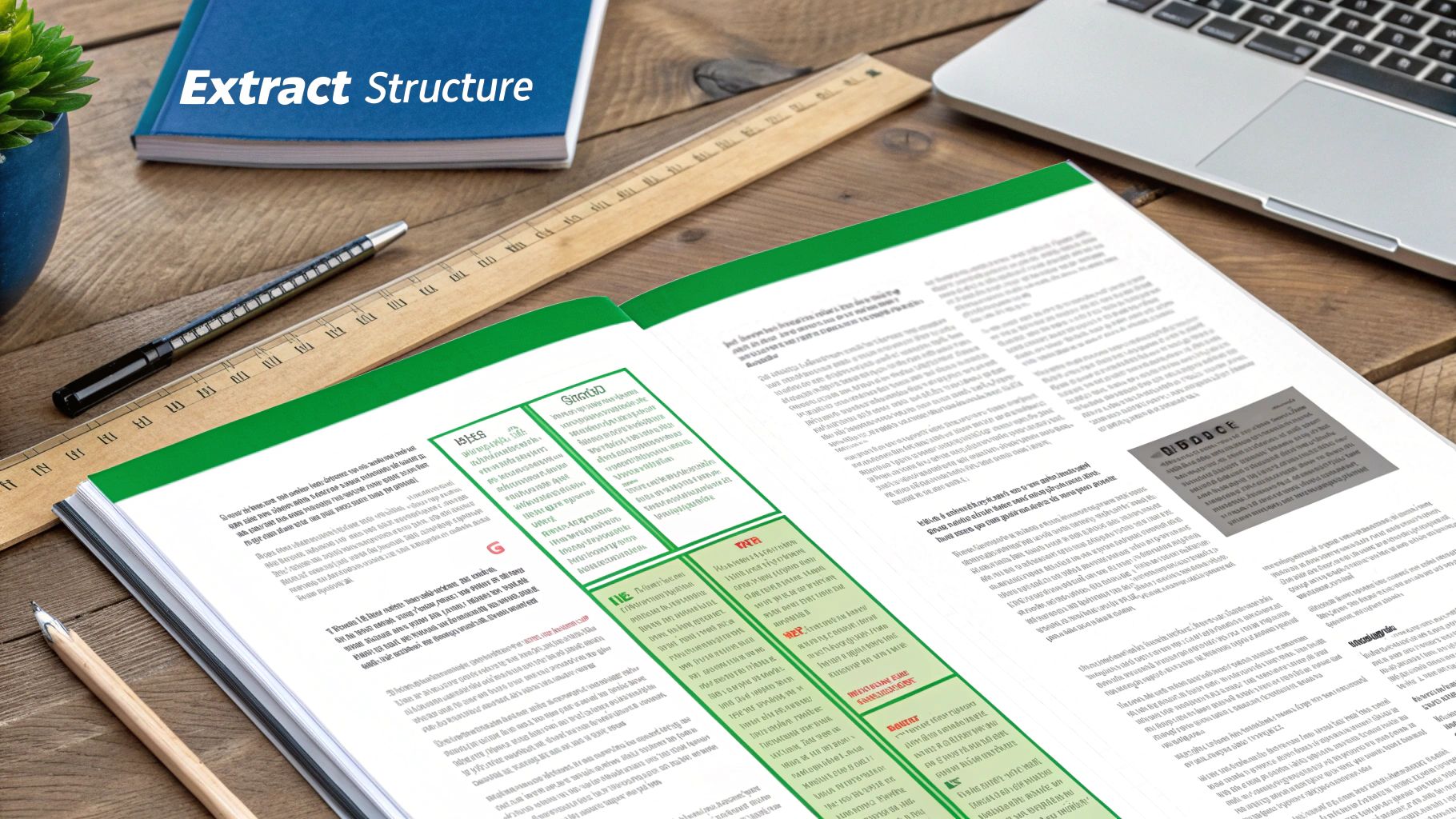
Pulling out a raw, unstructured wall of text from a PDF is just the first step. The real magic happens when you can make sense of where that text came from.
Think about it: a number in a table cell has a completely different meaning than a number in a page footer. A simple text dump treats them exactly the same, which is a huge problem for documents like financial reports, invoices, or academic papers. You lose all the original context.
This is where layout-aware python pdf text extraction comes into play. By capturing not just the text but its precise position on the page, you can start to programmatically piece the original document's structure back together. This lets you tell headers from body content, untangle tricky multi-column articles, and—most importantly—reliably pull structured data out of tables.
Libraries like PyMuPDF and PDFPlumber are your best friends here. They don't just see a string of words; they see text blocks with coordinates. These coordinates, often called bounding boxes, define the exact (x0, y0, x1, y1) location of each snippet of text. Suddenly, you have the spatial awareness you need to navigate even the most complex layouts.
From PDF Table to Pandas DataFrame
One of the most powerful things you can do with layout data is rip a table straight out of a PDF and drop it into a structured format. Imagine you need to analyze a sales report table. With a standard text dump, you’d get a jumbled mess of numbers and headers. But with PyMuPDF’s positional data, you can grab that table and convert it into a Pandas DataFrame with just a bit of code.
Here's a practical look at how you might do this using PyMuPDF. We’ll use the get_text("blocks") method, which gives us a list of text blocks, each with its own content and bounding box.
import fitz # PyMuPDF import pandas as pd
def extract_table_to_dataframe(pdf_path, page_num, table_area): """ Extracts a table from a specific area of a PDF page into a Pandas DataFrame.
Args:
    pdf_path (str): The path to the PDF file.
    page_num (int): The page number containing the table (0-indexed).
    table_area (tuple): A tuple (x0, y0, x1, y1) defining the table's bounding box.

Returns:
    pd.DataFrame: A DataFrame containing the extracted table data.
"""
doc = fitz.open(pdf_path)
page = doc.load_page(page_num)

# Extract words within the specified table area
words = page.get_text("words")
table_words = [w for w in words if fitz.Rect(w[:4]).intersects(table_area)]

# A simple (and naive) logic to group words into rows and columns
# This would need to be more robust for complex tables
if not table_words:
    return pd.DataFrame()

# Group words by their vertical position (y0) to form rows
rows = {}
for x0, y0, x1, y1, word, _, _, _ in table_words:
    if y0 not in rows:
        rows[y0] = []
    rows[y0].append((x0, word))

# Sort rows and words within rows
sorted_rows = sorted(rows.items())
table_data = []
for _, words_in_row in sorted_rows:
    sorted_words = sorted(words_in_row)
    table_data.append([word for x0, word in sorted_words])

doc.close()

# Convert to DataFrame
if not table_data:
    return pd.DataFrame()

df = pd.DataFrame(table_data)
# Often the first row is the header
df.columns = df.iloc[0]
df = df[1:]

return df
Example usage:
You would need to determine the table_area coordinates beforehand
report_pdf = 'financial_report.pdf' table_bbox = (50, 150, 550, 400) # (x0, y0, x1, y1) df = extract_table_to_dataframe(report_pdf, 0, table_bbox) print(df)
This code gives you a solid starting point. For seriously complex or wonky tables, you might want to check out specialized tools like
camelot-py, which builds on these same principles but has more advanced algorithms for finding table structures.
Reconstructing Reading Order
Positional data is also a lifesaver for another common headache: multi-column layouts. If you’ve ever tried to extract text from a newspaper or an academic journal, you know the pain. A naive script reads straight across the page, mashing lines from different columns together into complete gibberish.
The fix is to sort the text blocks, first by their vertical (y) position and then by their horizontal (x) position. This simple spatial sort lets you reconstruct the logical reading flow of the document, preserving the original narrative.
Getting the reading order right is critical before you prepare text for an AI model. Jumbled sentences will completely confuse downstream tasks like summarization or question-answering. This process is the first step toward more advanced data preparation; for instance, understanding semantic chunking shows how structure impacts AI-ready data. It all starts with getting the layout right to ensure the text you feed into a model is coherent and makes sense.
Prepping Extracted Text for RAG and AI Models
https://www.youtube.com/embed/pIGRwMjhMaQ
Getting the text out of a PDF is really just the first step. If you've ever done it, you know the raw output can be a chaotic mess of weird characters, broken lines, and jumbled formatting.
Shoving that mess directly into an AI model, especially for a Retrieval-Augmented Generation (RAG) system, is a recipe for terrible results. It’s simple: the quality of your input data dictates the quality of your AI's output.
This final stage is where the magic happens. We need to transform that raw text into clean, structured data that an AI can actually understand. That means cleaning up the noise and, just as important, intelligently breaking the document into meaningful pieces, or "chunks."
Basic Text Cleaning Is Non-Negotiable
Before you even think about chunking, you have to do some basic text hygiene. This isn't just a best practice; it's a mandatory first step to avoid errors and get decent performance from your models.
Start by tackling the common junk you get from the python pdf text extraction process:
- Normalize Whitespace: PDFs are notorious for having multiple spaces, tabs, and newlines where there should only be one. A quick pass with a regular expression can collapse these down to a single space, making the text flow naturally.
- Remove Weird Characters: You'll often find strange control characters, ligatures (like
fiinstead offi), or other encoding artifacts. Ditching these prevents tokenization headaches down the line. - Fix Broken Words: Words hyphenated at the end of a line are a classic PDF problem. You have to rejoin them so your model sees "generation" instead of "gener-" and "ation" as two completely different concepts.
These small cleanup steps have a massive impact on the text's coherence.
The Art of Smart Chunking
Once your text is clean, it's time to chunk it—dividing the long document into smaller, digestible segments. The goal here is to create chunks small enough to fit into a model's context window but large enough to contain a complete thought. This is where you need a real strategy.
Chunking isn't just splitting text. It's about preserving context. A bad split can tear a key idea in half, making the resulting chunk useless for retrieval. Your chunking strategy directly impacts how accurate and relevant your RAG system's answers will be.
There are a few popular ways to do this, each with its own trade-offs.
- Fixed-Size Chunking: This is the most basic method. You just split the text every
Ncharacters. It's fast and easy, but it’s a blunt instrument that often butchers sentences and ideas. - Recursive Character Splitting: A much smarter approach. It tries to split text along a hierarchy of separators, starting with double newlines (paragraphs), then single newlines, and finally spaces. This respects the natural structure of the text much better.
- Semantic Chunking: This is the most advanced technique. It uses an embedding model to group sentences based on their meaning, ensuring that chunks are thematically coherent. It’s more work, but the results are often far superior for complex documents.
Choosing the right strategy is critical. You can dive deeper into the trade-offs with our guide on RAG pipeline optimization.
Preserving Metadata: The Key to Trustworthy AI
A chunk of text without its source is just an anonymous, untrustworthy fact. For any RAG system to be useful, it absolutely must be able to cite its sources. This means every single chunk has to carry metadata linking it back to where it came from in the original document.
This is non-negotiable. At a minimum, every chunk needs to know:
- Source Filename: The name of the original PDF file (e.g.,
annual_report_2023.pdf). - Page Number: The exact page the text was extracted from (e.g., 42).
This "provenance" is what allows your application to show users where it found the information, which builds trust and lets them verify the answers for themselves.
Thankfully, tools like LangChain make it pretty easy to attach this metadata during the chunking process. Here’s a quick conceptual example using its RecursiveCharacterTextSplitter.
from langchain_text_splitters import RecursiveCharacterTextSplitter
Assume 'full_text' is the cleaned text from a PDF
and 'source_metadata' is a dictionary like {'source': 'doc.pdf', 'page': 5}
text_splitter = RecursiveCharacterTextSplitter( chunk_size=1000, chunk_overlap=200, length_function=len, )
Create documents with metadata before splitting
documents = text_splitter.create_documents([full_text], metadatas=[source_metadata])
Now, each 'document' in the list is a chunk with its metadata attached
print(documents[0].metadata) -> {'source': 'doc.pdf', 'page': 5}
This simple step ensures that as your data flows through your AI pipeline—from embedding to retrieval—you never lose that vital link back to the source. It’s the final, crucial piece of the puzzle for turning a messy PDF into a valuable, AI-ready asset.
Common Questions About Python PDF Extraction
As you start working with Python to pull text from PDFs, you're going to hit a few common roadblocks. Everyone does. Let's walk through some of the most frequent questions I see and get you some practical answers so you can keep moving.
Which Python Library Is Best for Extracting Tables?
When you need to pull structured data out of tables, a simple text dump just creates a mess. You need a tool that actually understands the grid layout. For this job, two libraries stand out from the pack: pdfplumber and camelot-py.
- PDFPlumber is my go-to for custom jobs. It gives you incredible control, letting you access the exact coordinates of text and lines. This means you can piece together even the most complex tables with your own logic. It takes a bit more code, but the power is worth it.
- Camelot is the specialist. It was built for one thing and one thing only: flawless table extraction. It often works perfectly right out of the box. Its 'lattice' mode is brilliant for tables with clear grid lines, while 'stream' mode is smart enough to group text based on whitespace in tables that don't have borders.
And for those truly nightmarish tables? Sometimes I'll use a hybrid approach. I'll grab the text and its bounding box coordinates with PyMuPDF and then build a totally custom parser. It’s the ultimate escape hatch.
How Can I Speed Up Processing Thousands of PDFs?
Processing PDFs one-by-one at scale will bring any project to a crawl. If your script is moving at a snail's pace, there are two big levers you can pull: your choice of library and parallelism.
First things first, the library you choose matters—a lot. As we've seen, PyMuPDF (fitz) is in a different league when it comes to speed, easily outperforming older tools like PyPDF2. If performance is even a minor concern, starting with PyMuPDF is a non-negotiable.
Next, you need to think in parallel. Processing a PDF is a CPU-bound task, which makes it a perfect candidate for Python's multiprocessing module. Instead of running through your files sequentially, you can set up a pool of worker processes to chew through multiple PDFs at the same time. This is how you turn a job that takes hours into one that finishes in minutes. It's a game-changer for batch processing.
Why Is My Extracted Text Full of Strange Characters?
Ah, the classic "gibberish" problem. This is easily the most frustrating part of PDF extraction. If your output is a jumble of weird symbols, garbled words, or bizarre spacing, it almost always comes down to two culprits: character encoding or a funky document layout.
Some PDFs are generated without a proper character map (a ToUnicode map), which means the extraction library has to guess what character a specific code represents. Thankfully, modern libraries like PyMuPDF are much, much better at navigating these tricky situations and often fix the issue automatically.
Bad spacing, though, is usually a layout problem. This happens when the PDF positions text character-by-character instead of as complete words. You can often clean this up afterward with a quick regex pass to normalize the whitespace, like
re.sub(r'\s+', ' ', extracted_text). Trying to preserve the layout during extraction can also give the library a better shot at grouping words correctly from the start.
Ready to move beyond manual scripting and accelerate your document processing workflows? ChunkForge is a contextual document studio designed to convert your PDFs into perfectly structured, RAG-ready chunks in minutes. With a visual interface, multiple chunking strategies, and deep metadata enrichment, it’s the fastest way to prepare your documents for any AI pipeline. Start your free trial today at https://chunkforge.com.
Article created using Outrank